ExportKit
Guide
Free Play Store screenshot tool
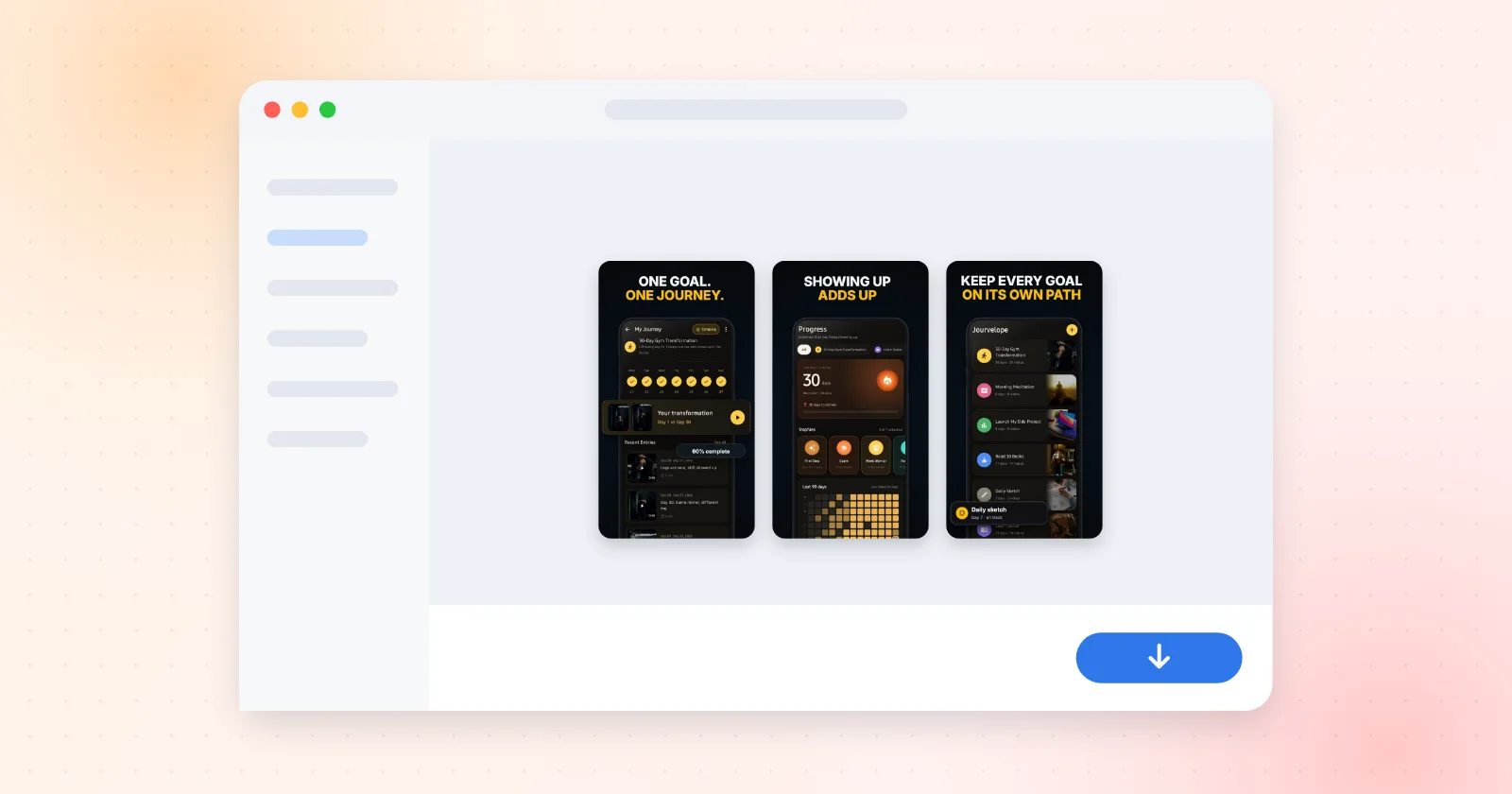
Most "free" screenshot tools are free until you press download. This is how to get a full set of Google Play screenshots at 1080 × 1920 without paying, without a watermark, and without uploading unreleased app screens to anyone's server.
What's in this article
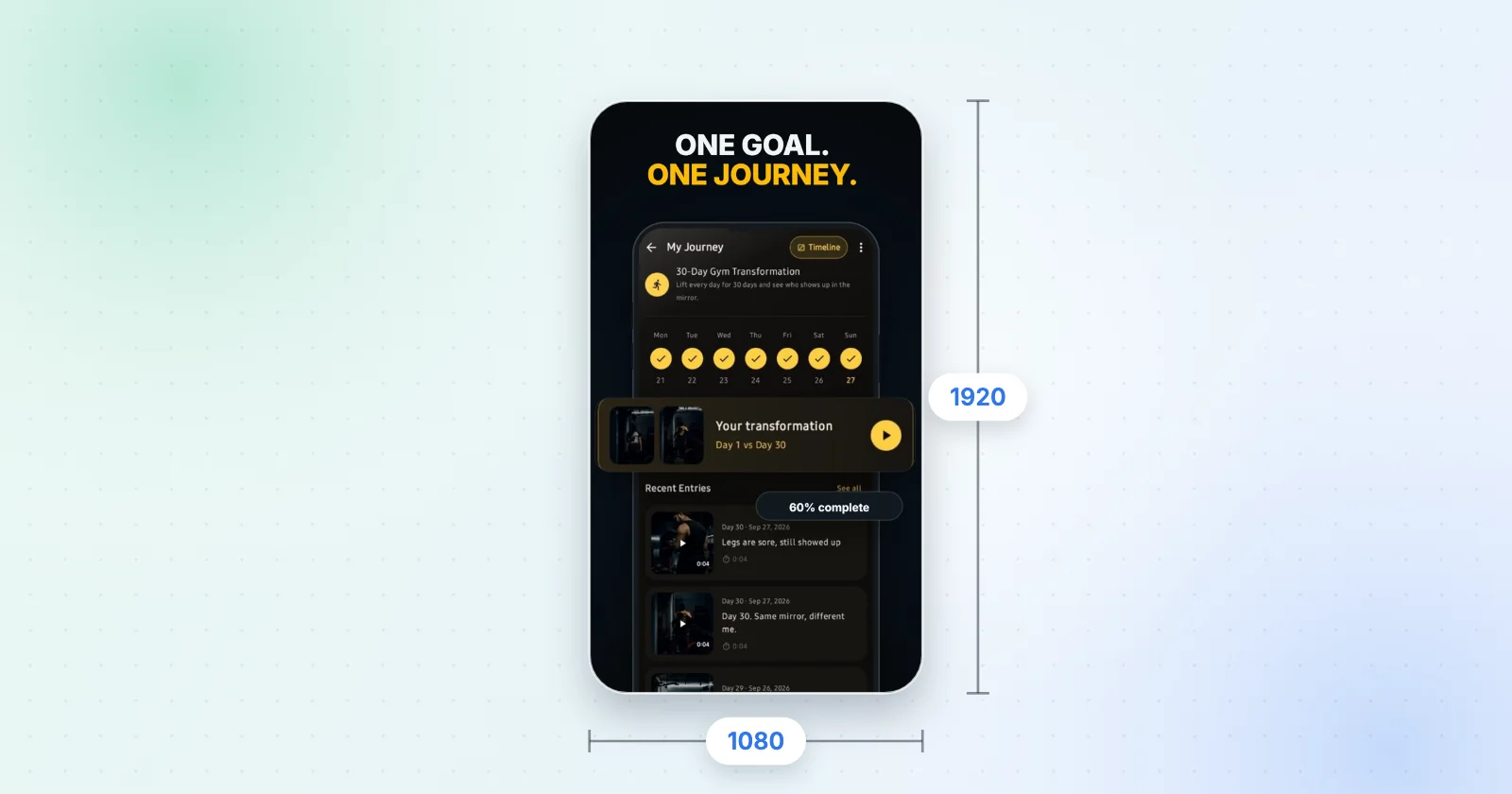
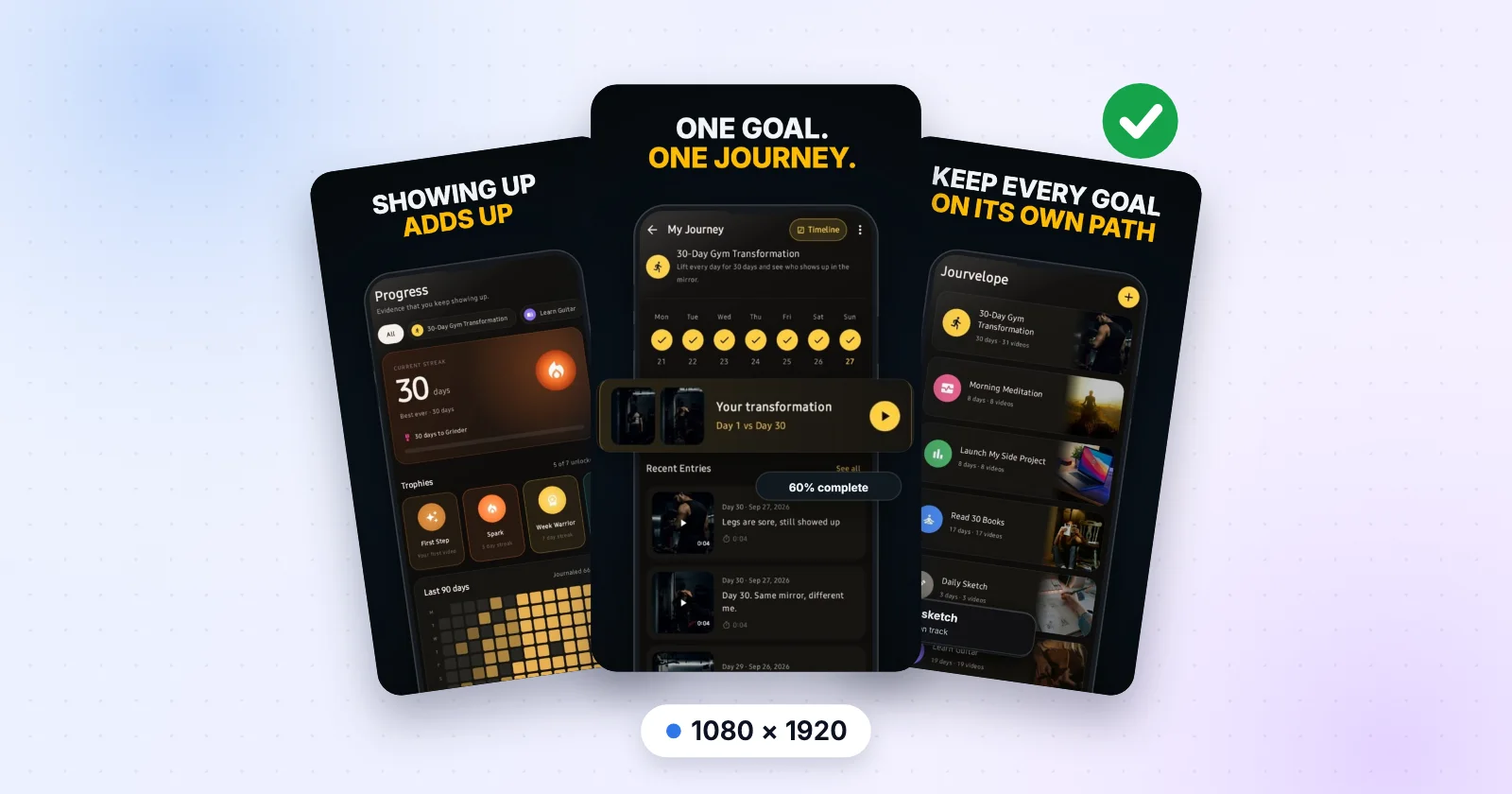
Google Play's own recommended portrait size, up to eight per set, exported as PNG with no watermark and no cap. You can start without an account; sign in only if you want the work to still be there tomorrow.
What "free" usually means in this category
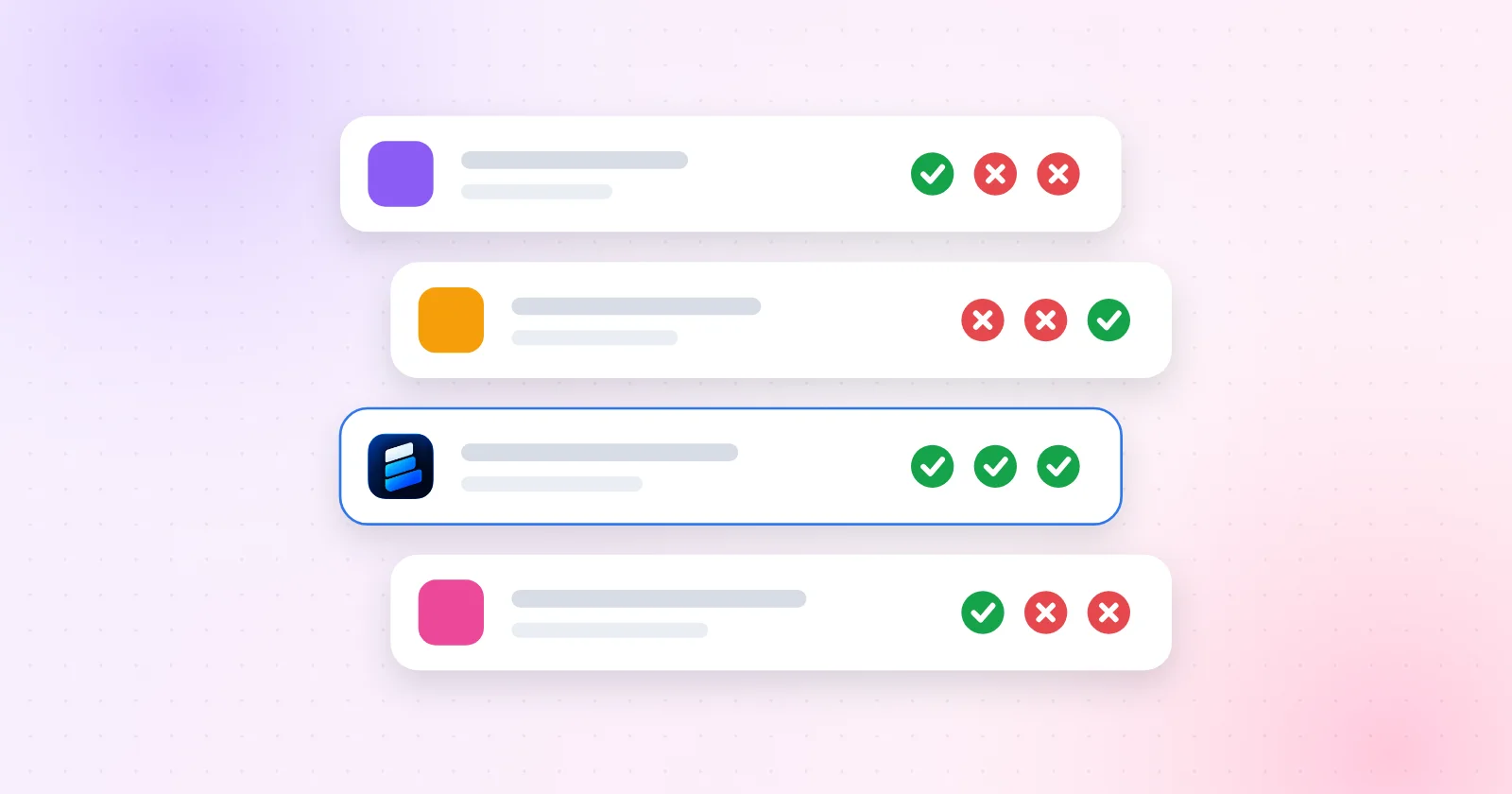
The pattern across the tools in this space is that the editor is free and the export is not — or the free tier caps how many screens a project can hold, or stamps the output. Two examples, read from the vendors' own pricing pages:
- AppScreens — the free plan allows "Create up to 5 screens per project" and "1 saved project"; the cheapest paid plan is $8.25/month "Billed annually at $99.00". Observed 2026-10-17
- AppLaunchpad — the editor is reachable but gates on
/auth, and the cheapest paid plan observed was $180/year, or $29/month. Observed 2026-10-14
Neither of those is a scandal — they are businesses. The point is that "free screenshot generator" in a page title is usually about the editor, not the file you need.
What ExportKit's free tier actually allows
| Thing | Free tier |
|---|---|
| Screenshot size | 1080 × 1920 PNG |
| Screenshots per set | Up to 8Google Play's own maximum per device type |
| Exports | Unlimited |
| Watermark | Never |
| Account | Not needed to startSigned out, a kit lives in the tab and ends with it |
| Template sets | 3 of them free |
| Commercial use | Included |
The fence is the design library, not the functionality: the rest of the template sets are a one-time licence that is not on sale yet. Everything that makes a file is free, permanently.
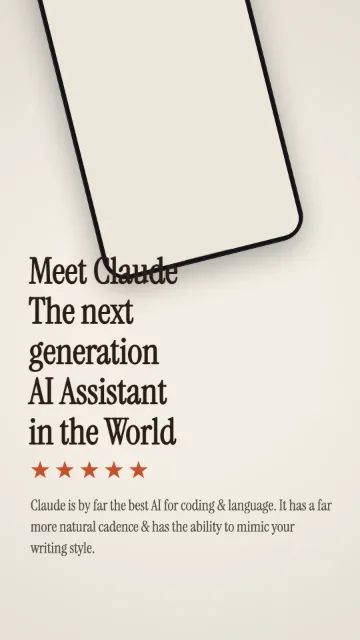
Start to upload, in order
- Take the screens
Android Studio's emulator or a device screenshot. Any resolution — the frame scales them. Grab one per thing you want to say, not one per screen in the app.
- Open the screenshot editor
/app opens straight into it. Pick one of the free template sets; it lays out the whole carousel rather than one image at a time.
- Drop a screen into each frame
The image is read in your browser. There is no upload step and no processing queue, which is also why it is fast.
- Write one line per frame
Lead with the outcome, not the feature. You write these — ExportKit has no copy generation in it.
- Download all
Eight PNGs at 1080 × 1920, numbered, or the whole kit as a zip with the icon, the feature graphic and your listing text.
- Upload to Play Console
Store listing → Phone screenshots. Two is the minimum to publish; four or more is what Google recommends. The full spec.
The honest limits
The App Store needs one size ExportKit doesn't make yet. Switch the device to iPhone and the set exports at 1290 × 2796, which Apple accepts for large iPhone displays. Apple also requires at least one screenshot at 1179 × 2556 or 1206 × 2622, and ExportKit doesn't export that size yet. The App Store sizes are documented here.
It is a desktop tool. A canvas editor with panels on both sides wants roughly 1280–1600 px of screen. This page reads fine on a phone; the editor does not.
ExportKit does not write your screenshots for you and there is no image generation in it: you bring the app screens and the words, and it handles layout, sizing and export. That is a deliberate line, not a missing feature — a generated store listing is a rejected store listing.
Make the set now
Pick a template set, drop in your app screens and download every file the listing needs, in your browser, with nothing uploaded.
Open the screenshot editorFree · No account to start · Nothing uploaded unless you ask
Frequently asked questions
Is there a genuinely free Play Store screenshot tool?
ExportKit exports Google Play screenshots at 1080 × 1920 with no watermark, no export cap and no account needed to start. Three screenshot template sets are free; the rest of the library is a one-time licence that is not on sale yet.
Do I need to upload my app screens anywhere?
No. The images are read and rendered on a canvas in your own browser, and the PNGs and the zip are assembled in the same tab. Nothing is uploaded unless you sign in and press Back up now.
What size should Play Store screenshots be?
1080 × 1920 is the usual portrait choice and is what Google recommends as a minimum at 9:16. Play accepts anything from 320 to 3840 px per side as long as the long side is no more than twice the short side.
How many screenshots do I need for a Play listing?
Two across different device types is the minimum to publish, up to eight per device type, and Google recommends at least four at 1080 px or more.
Will the screenshots have a watermark?
No. There is no watermark on any tier, and no limit on how many times you export.